This tutorial shows how to build a simple front-camera eye tracker
with Python. The tracker estimates a 3D gaze origin and direction
that can be used for screen control, interaction experiments, and
gaze visualization.
To help support this software and other open-source projects, please consider
subscribing
to or joining my YouTube channel.
Building the Tracker
Step 1: Gather the parts
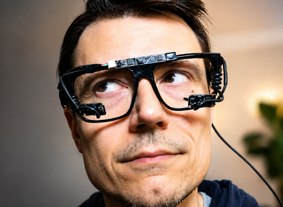
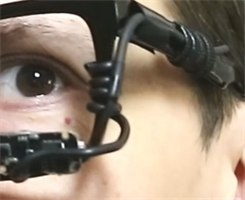
You need a small eye tracking camera (Fig. 1),
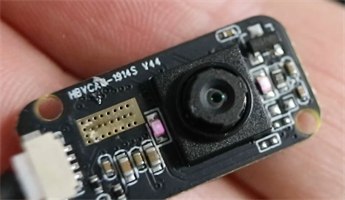
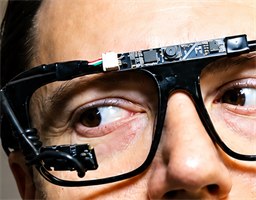
a low cost board camera (Fig. 2),
USB extension cables if you
need more cable length, a pair of
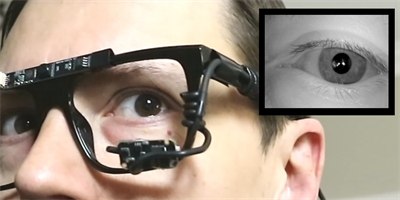
cheap sunglasses with the
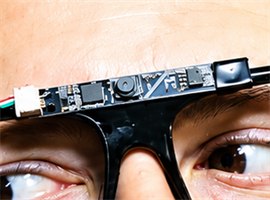
lenses removed (Fig. 3), soft wire cabling
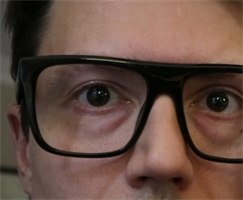
(Fig. 4)
or another flexible material for mounting, and
electrical tape for securing
loose cable sections. A low-cost GC0308 eye tracking camera works for
this build, and inexpensive dollar-store glasses are enough because
the frame is only used to hold the camera near the eye.
Review IR safety and evaluate the camera's
infrared output before using it close to the eye.
Wrap the soft wire
around the camera
and cable, then attach it to
the glasses frame
to create the completed camera mount (Fig. 5).
Use electrical tape if you need to
secure the camera cable or keep the mount from sliding. The goal is
to make a firm but adjustable mount:
the camera should stay in place after you reposition it, but you
should still be able to bend the mount until the eye is fully visible
in the camera feed (Fig. 6).
Download Orlosky3DEyeTrackerFrontCamera.py and install the required
Python packages. The tracker uses OpenCV and NumPy for image
processing. Tkinter is used for the startup window and is included
with many Python installations. The optional gl_sphere.py
file enables the OpenGL sphere visualization, but the tracker will
still run without it.
pip install opencv-python numpy
Step 4: Run the tracker
Open a terminal in the folder containing the script and run it with
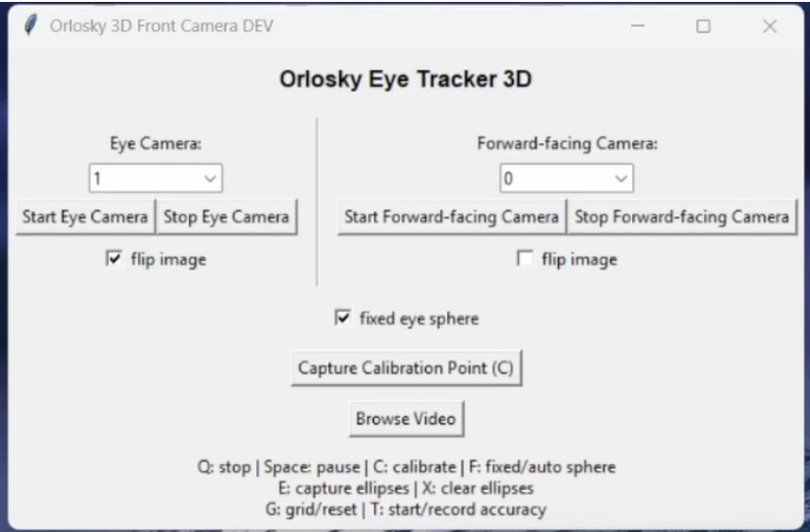
Python. The startup window is titled Orlosky 3D Front Camera.
Select different camera indexes for Eye Camera and
Forward-facing Camera, then click Start Eye Camera
and Start Forward-facing Camera. The eye camera should show
your eye; the forward-facing camera should show the scene in front of you.
Use each camera's flip image checkbox if its view is upside down
(this flips vertically). Set the orientation before calibrating.
Changing a camera or its flip setting clears the front-camera calibration.
python Orlosky3DEyeTrackerFrontCamera.py
If you found this software/tutorial useful, please consider
subscribing or
joining
my YouTube channel to support this project!
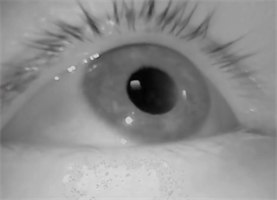
After starting the eye camera, adjust the camera until the
eye is clearly visible in the OpenCV window (Fig. 8). The script crops
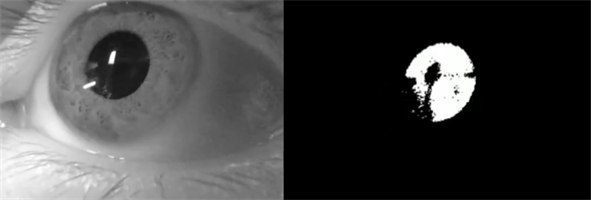
the frame, finds the darkest pupil region, and thresholds the image at
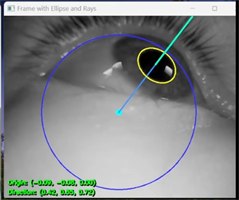
several levels (Fig. 9). It then fits an ellipse to the pupil,
estimates the eye center from recent pupil rays, and displays the
tracking overlay (Fig. 10). Look around to let the automatic eye-sphere
estimation settle before calibrating to the forward-facing view.
Press F or check fixed eye sphere to fix the eye sphere as-is. Resuming automatic adjustment with F clears that calibration.
Step 6: Calibrate gaze to the forward-facing camera
In the
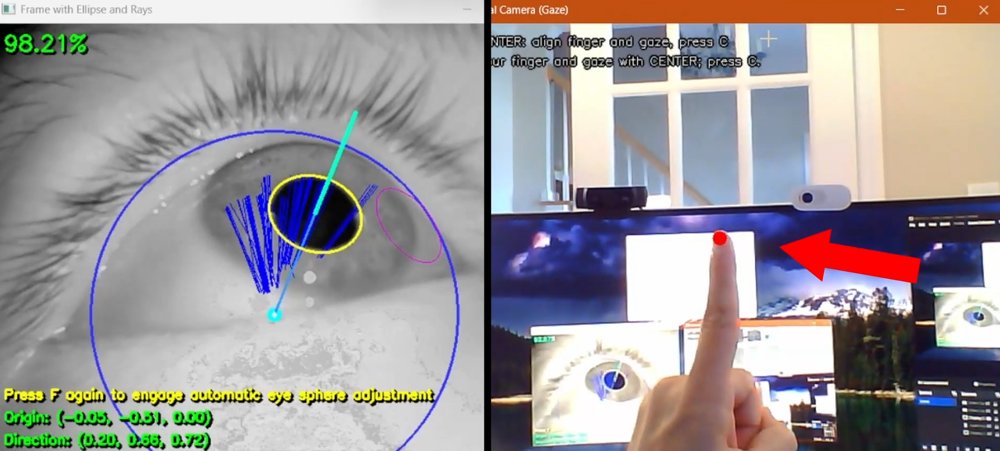
External Camera (Gaze) window, move the tip of your finger until it lines up with the red calibration dot in the camera image, then
look at your actual fingertip (Fig. 11) without moving your head. Press C or click Capture Calibration Point (C) to capture that gaze direction.
Repeat for each of the red dots.
The red dot
then follows your calibrated gaze. If calibration fails, follow the
displayed message and repeat the samples. Press C after a
completed calibration to begin again at center, or F to
clear calibration and resume automatic sphere adjustment. Recalibrate
after repositioning the glasses or cameras.
Fig. 11. Align your fingertip with the red dot, look at your finger, and press C.
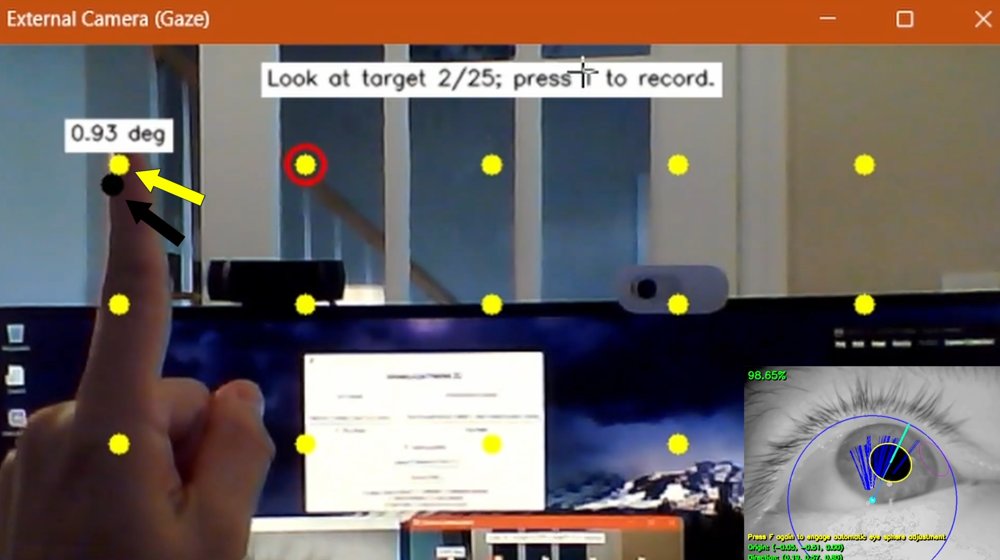
Step 7: Check accuracy with the target grid
After calibration, press G in an OpenCV camera window to
show the 5 × 5 accuracy grid. Press T once to select
the upper-left target. Move your fingertip to the highlighted target
in the camera image, look at your finger, and press T again
to record a sample and advance. Work left to right across each row,
from top to bottom, until all 25 targets are recorded. Both streams
must remain running and unpaused.
Yellow dots are targets, the red ring marks the current target, and
black dots show recorded gaze positions (Fig. 12). Each recorded target
gets an angular-error label; the mean error appears after the final
sample. These estimates assume a 60-degree diagonal field of
view for the forward camera. Set
FRONT_DIAGONAL_FOV_DEGREES in the script to match your camera
for meaningful degree estimates. Press G to hide and reset
the grid, then again to begin a fresh test. The calibration fit RMS
measures the calibration samples; this grid checks additional locations.
Fig. 12. The accuracy grid compares recorded gaze points with 25 targets and reports error in degrees.
Step 8: Read the gaze output and use the controls
The eye-tracking window displays the 3D gaze origin and direction.
On frames with a computed gaze vector, the script overwrites
gaze_vector.txt with six comma-separated values: three origin
coordinates followed by three normalized direction components. After
calibration, the origin is held at the captured sphere center; the
direction remains the eye model's 3D gaze direction. The file does not
contain the calibrated forward-camera pixel coordinates.
With an OpenCV camera window focused, use lowercase q to stop both
live cameras, Space to pause or resume, C to capture a
calibration point, F to toggle fixed/automatic sphere
adjustment, G to show or reset the grid, and T
to start or record an accuracy test. Use lowercase e to
toggle ellipse capture and X to clear captured ellipses.
Close the startup window to exit the application.
For recorded eye footage, use Browse Video to select an
.mp4 or .avi file. This stops the live cameras
and saves an annotated video beside the source with _tracked
added to its filename. Live two-camera calibration and grid testing
require the camera streams.
Step 9: Use the vector in your own project
Once the tracker is running, you can read gaze_vector.txt
from another program or modify the Python script to send the gaze
vector directly to your application. Use current_gaze_camera_point()
inside the script for calibrated forward-camera pixel coordinates.
Mapping gaze to a monitor or VR display requires a separate calibration
for that surface. The text file has no timestamp or validity flag and
can retain the last values during a detection dropout; add those fields
if your application needs to distinguish fresh samples from old ones.
For the VR installation process, see this
video or this
tutorial.
Step 10: Use AI to build your own gaze application
You can use an AI coding assistant or large language model to turn
this tracker into your own application. Start by giving the model the
Python script, explain what the gaze vector represents, and describe
the interaction you want to build. Ask for small changes first, test
each version, and paste any error messages or unexpected behavior
back into the chat so the model can help you debug.
These sample prompts can help you get started:
I have a Python eye tracking script that writes gaze data to gaze_vector.txt as:
x_origin,y_origin,z_origin,x_direction,y_direction,z_direction

Explain how this data could be used to control a simple application.
Modify this Python eye tracking project so another Python program can read
gaze_vector.txt and move a cursor or marker on screen based on the gaze direction.
Keep the first version simple and explain where I should paste each code change.
Create a small demo app that reads gaze_vector.txt in real time and displays
a dot moving on a 2D window. Include smoothing so the dot does not jitter too much.
Help me add a calibration step to this gaze tracker. I want the user to look at
points on the screen, save the measured gaze vectors, and map future gaze vectors
to screen coordinates.
I want to use this eye tracker for a custom interaction project. Ask me the
minimum questions needed, then propose a simple first prototype using the existing
gaze_vector.txt output.
Here is the error message I get when running the eye tracking code. Explain what
is probably wrong and give me the smallest code or setup change to try first.